Machine Covers
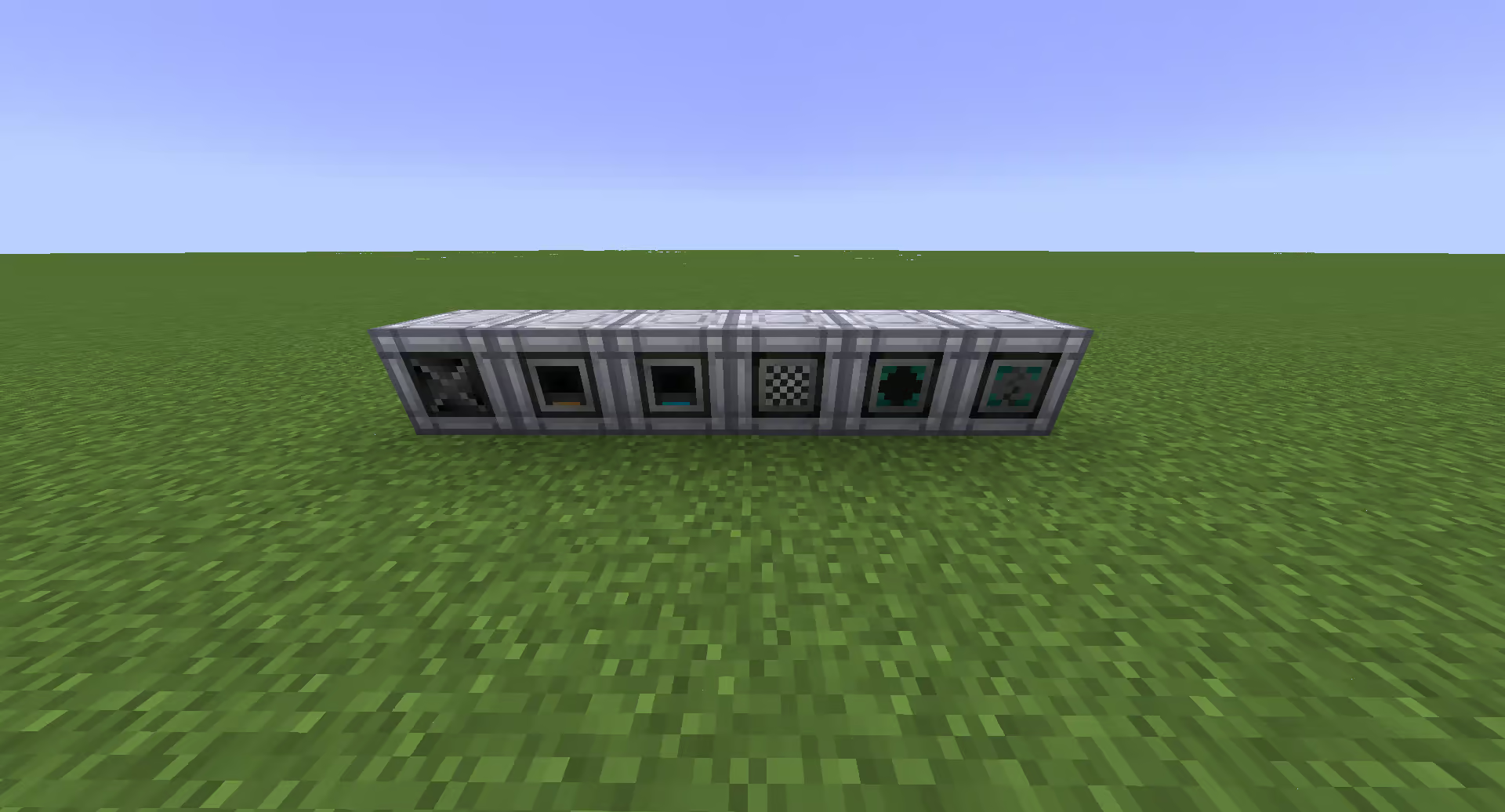
A collection of covers on the rear side of six Chemical Reactors.
Machine covers are special items that can be placed on the side of a GTCEu machine, pipe, or multiblock part to give it additional functionality. When holding a cover, an overlay will appear on a machine or pipe that allows you to select which side you wish to place the cover on. The middle of the overlay indicates the side facing you, the top/bottom/left/right will place the cover on that specific side, and the corners of the overlay will place it on the opposite side. Screwdrivers can be used to configure covers using the same overlay.
Machines and multiblock parts also have a tab in their GUI - accessible from the second button from the top on the left side of the main GUI - that lets you select a side of the machine and apply or configure filters. This GUI also lets you select auto-input or auto-output sides within machines.
There are two types of covers; logistics covers and utility covers. The former involves covers that move items or fluids around, and the latter involve covers that change the behaviour of the machine or its inventory in some form.
Logistics Covers
Most logistics covers (except for filter covers) have some common functionalities:
They have a slot for Filters that control what the cover inputs or outputs.
They have a button for toggling manual I/O filtering. Manual I/O means any form of I/O that this cover does not control, such as an item pipe inserting items on the side the cover is on. This has three modes:
Disabled, which prevents all manual I/O will be blocked.
Filtered, which only allows manual I/O if it matches the filter the cover contains.
Unfiltered, which allows all manual I/O to pass through the cover.
They have the ability to toggle between exporting mode (exporting from the inventory of the machine they are placed on) and importing mode (importing from an adjacent inventory). If a cover is attached to a pipe, then only import mode will work.
They have a number entry for controlling the maximum amount of resources transferred per tick. The maximum for this value depends on the tier of the cover; it can be seen in the tooltip for the cover item.
Auto-Output
Whilst not strictly a cover, the auto-output modes can avoid requiring conveyor or pump covers. In the side configuration tab inside a machine’s GUI, there are buttons for automatic output of fluid and automatic output of items. Selecting a side in the GUI and then clicking the button will enable output/auto output through that side.
You can also toggle if item/fluid inputs should be allowed through that side. If your machine is not correctly filling with items or fluids, check that you haven’t placed the connecting pipe or cover on the automatic output side; if you have, you can either swift the side or click the button to allow input through automatic output sides.
Conveyor Cover
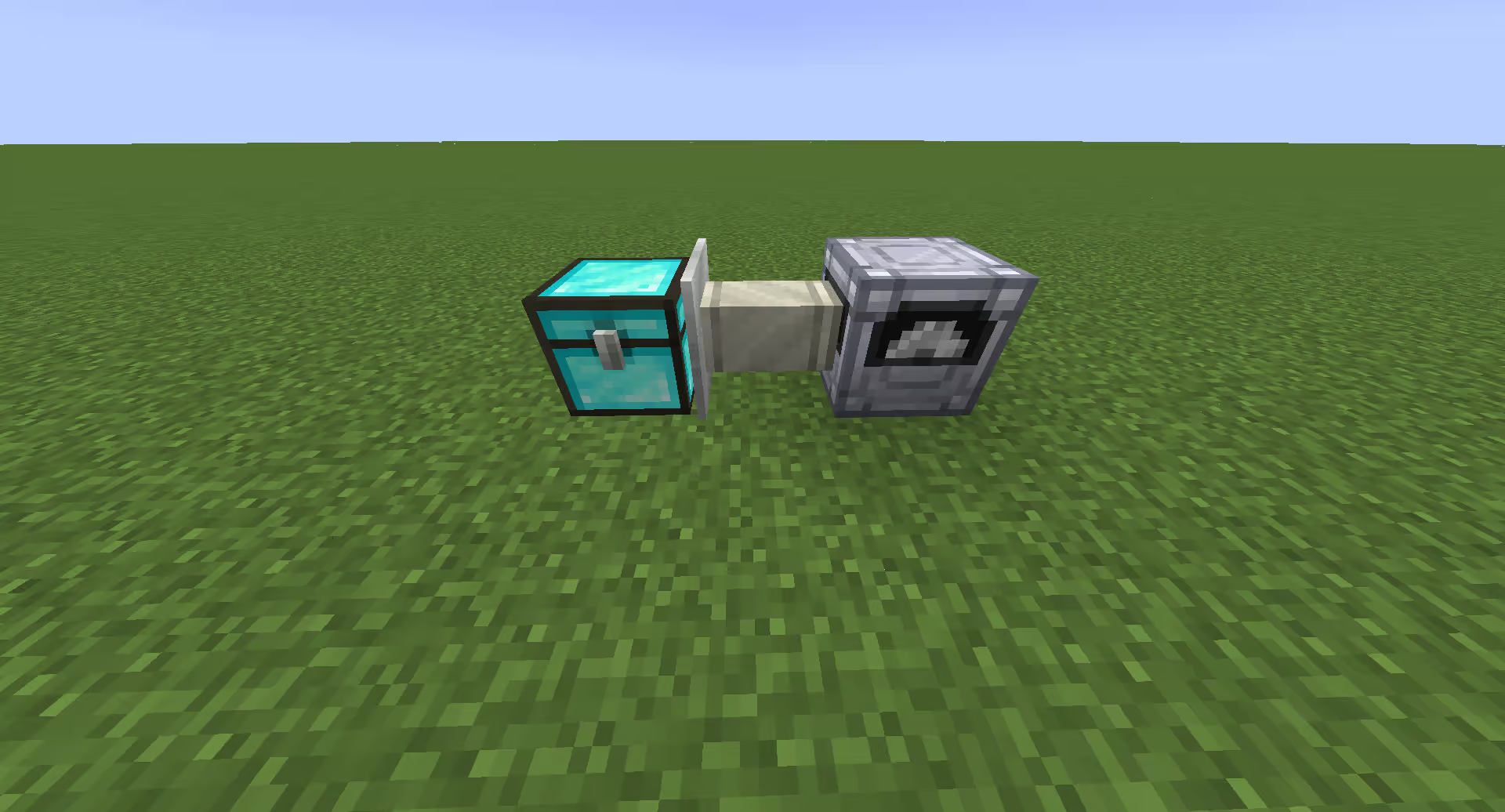
A conveyor on a pipe importing from a chest into a cutter.
The conveyor is both a crafting component used in many machines and a machine cover, which can export or import items from the side of a machine. Conveyors have a single slot for an item filter, which controls the items that they export or import. Conveyors can also be placed on pipes adjacent to inventories to import items directly from those inventories.
Conveyors must be placed directly next to the inventory or on the machine to do logistics I/O with or else nothing will happen. A machine cannot remotely import from an inventory.
Note
Conveyors on machines are only useful if you need to export items in multiple directions. If you only need to export them in one direction, you can use the auto export functionality of the machine available in the cover overview GUI as described in the previous section.
Robot Arm Cover
Danger
Robot Arms are currently broken; this issue mostly manifests when trying to use multiple items in the filter. It’s recommended that you use multiple item pipes instead.
The Robot Arm is like a conveyor cover, but it supports more precise control over quantities passing through; a conveyor will let all slots fill up with items instead. The Robot Arm has three modes:
Transfer Any: Acts identically to a conveyor.
Supply Exact: This will move an exact amount of items through the cover, doing nothing if there are not enough items to move.
For example, if the Robot Arm is set to move 32 Silicon Dust, and the container it is moving from only has 30 Silicon Dust, it will do nothing. Likewise, if the container has 40 Silicon Dust, it will move 32 into the machine and ignore the remaining 8 dusts.
Keep Exact: This will move as many items through the cover to match the amount set.
Warning
Only the Transfer Any and the Supply Exact modes will work over item pipes.
Pump & Fluid Regulator Cover
The Pump and Fluid Regulator covers serve the same purpose as the Conveyor and Robot Arm covers, but for fluids instead of items. They take a fluid filter instead of an item filter.
Note
The only key difference is that pump covers will typically only fill a single fluid slot in the target machine, whereas conveyors will fill all available slots with items.
Filters
Whilst filters are normally used within other covers, they can also be used directly as a cover on a machine. When used as a cover, filters will allow/disallow items or fluids being inserted by pipes or adjacent machines depending on how the cover is configured.
Filters can be configured with a right-click whilst in the inventory; multiple filters can be configured at the same time in this manner. Filters with identical NBT will stack together, and can be middle-clicked in creative mode to duplicate them.
Tag filters operate similarly to regular filters, but operate based on tags instead of individual items. The tags for an item are available if you enable Advanced Tooltips (F3 + H, by default) and then press Shift whilst hovering over an item in the inventory or EMI overview.
Utility Covers
Utility covers are all of the covers that don’t perform logistics, i.e. they don’t move items or fluids around between blocks directly. Unlike the logistics covers, none of these covers are tiered.
Detection Covers
The detection covers are special covers that output a redstone signal depending on certain attributes of the machine. There are four varieties for these covers: activity, item, fluid, and energy; these are analogue covers and output an analogue redstone signal depending on slot fullness. These covers can be configured using a screwdriver only (they have no configuration GUI) to invert the output.
There are also advanced versions of these covers, which allow customisation on the number of items, energy, or fluids present before the cover will begin emitting redstone. Finally, there is the advanced activity cover which outputs machine progress as an analogue redstone signal.
Voiding Covers
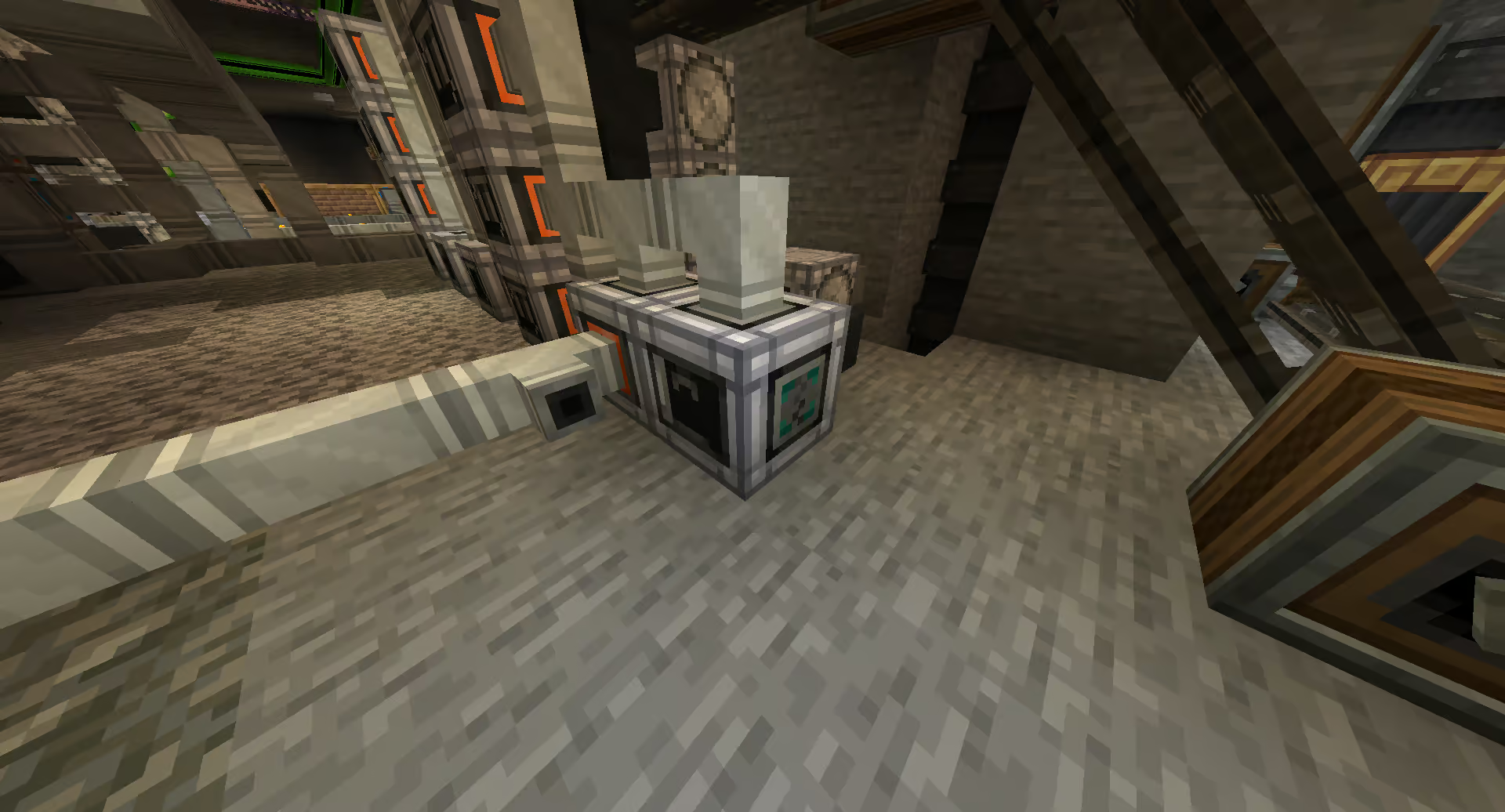
A packer with a basic unfiltered void cover on the side.
The Fluid Void Cover and Item Void Cover will delete fluids and items respectively from the machine or hatch they are attached to. Unlike most covers, the void covers need to be explicitly turned on in its configuration GUI before it will begin voiding things. Void covers can take a filter item and will only void items that the filter matches (whitelist or blacklist) if one is provided.
There are also Advanced variants of the regular void covers which has a “Void Overflow” mechanism; in this mode, only items or fluids that go over the limit specified in the cover configuration will be voided.
Machine Controller
The Machine Controller is a special cover that disables or enables the machine when a redstone signal is received. The primary purpose of this is for disabling top-up machines for recipes that operate in a loop; combined with a threshold switch, you can automatically disable machines when you have enough of a specific resource, and re-enable them when it drops below a specified level.
This cover can be configured with a screwdriver or the GUI to specify what redstone level the machine should activate at, and if to enable it or disable it when receiving a signal.